
Using SafePass
Step-by-step instructions for using the SafePass Desktop application.
Open SafePass
After installation, SafePass opens automatically. If it does not open, you can start the application manually in either of the following ways.
Option 1: Search for SafePass
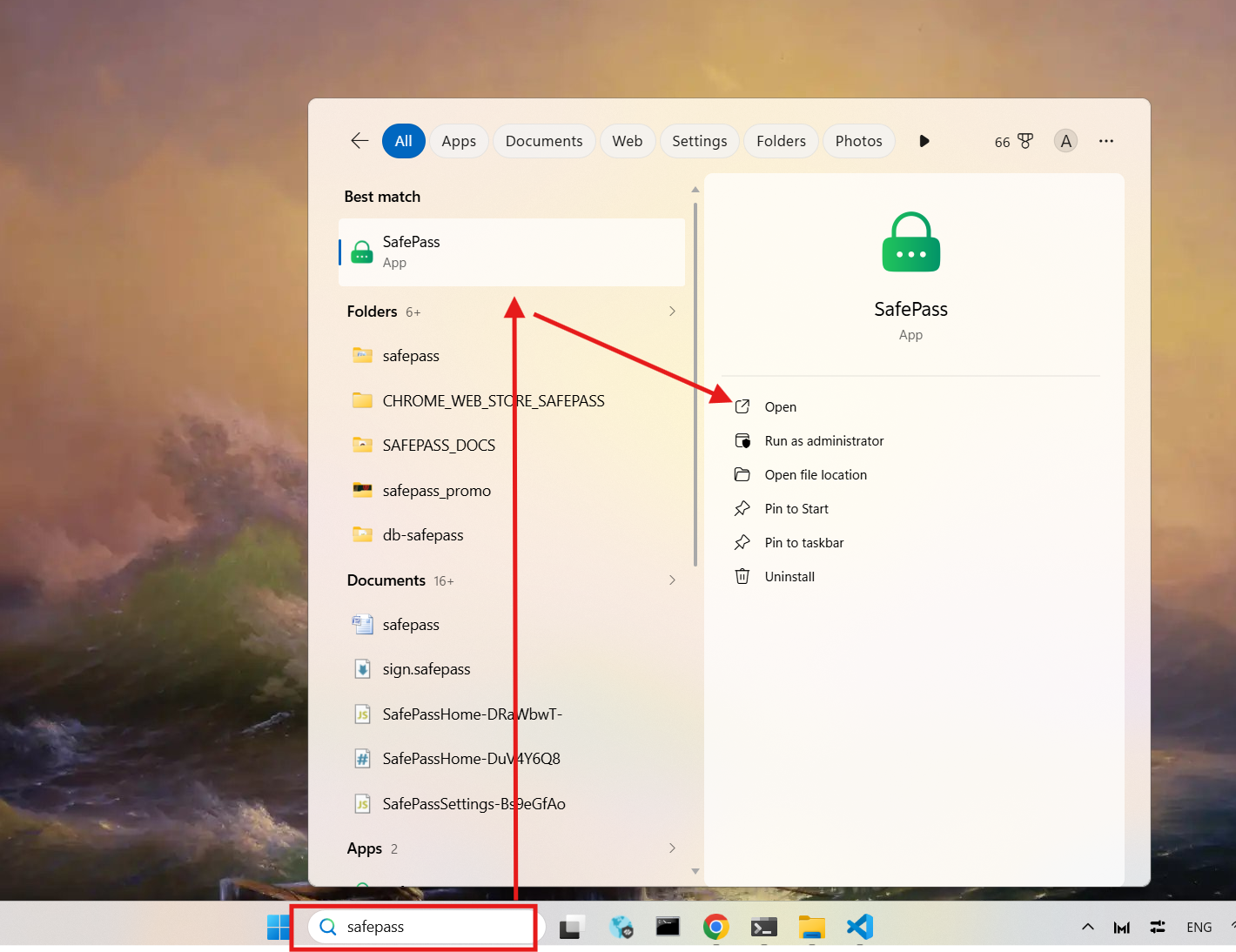
Open Windows Search and search for SafePass, then click the SafePass application to open it.
Option 2: Open SafePass from the System Tray
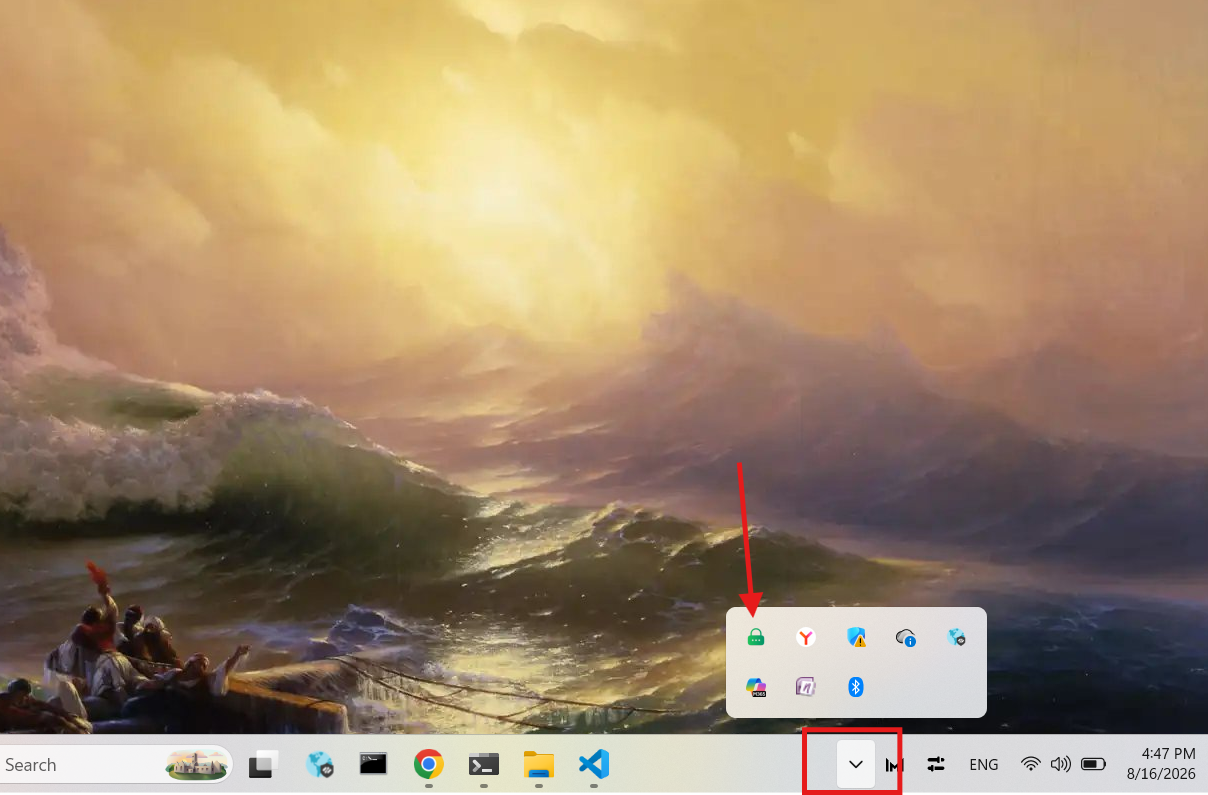
Click the caret (^) in the Windows taskbar notification area to show the hidden icons, then click the SafePass icon to open the application.
Sign In to SafePass
When you open SafePass for the first time, the application displays the login screen. Enter your SafePass account credentials to sign in and continue using the application.
Company Employees
If you joined SafePass through a company invitation, sign in using the username and password you created when you accepted the invitation and completed your account setup.
Individual Users
If you are using SafePass as an individual user, you can create an account directly from the login screen. Once your account is created, use your new credentials to sign in.
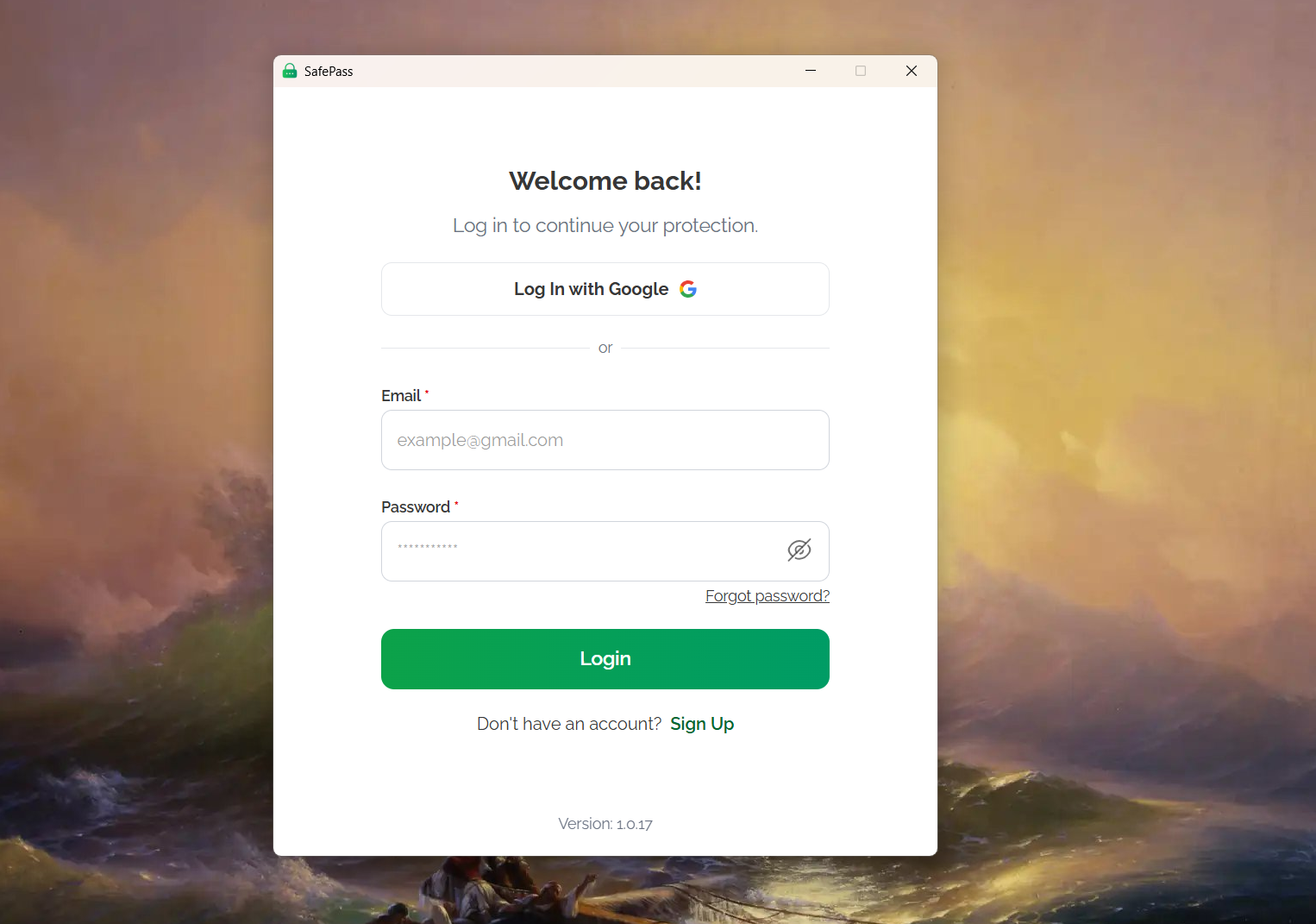
Sign in with your SafePass account credentials
Complete Initial Behavior Learning
The first time you use SafePass, the application begins learning your unique typing pattern. You will see a message saying Keep typing naturally while SafePass captures your typing behavior in the background. A progress indicator shows how much of the initial learning process has been completed, starting at 0% and gradually increasing to 100%.
Initial Learning
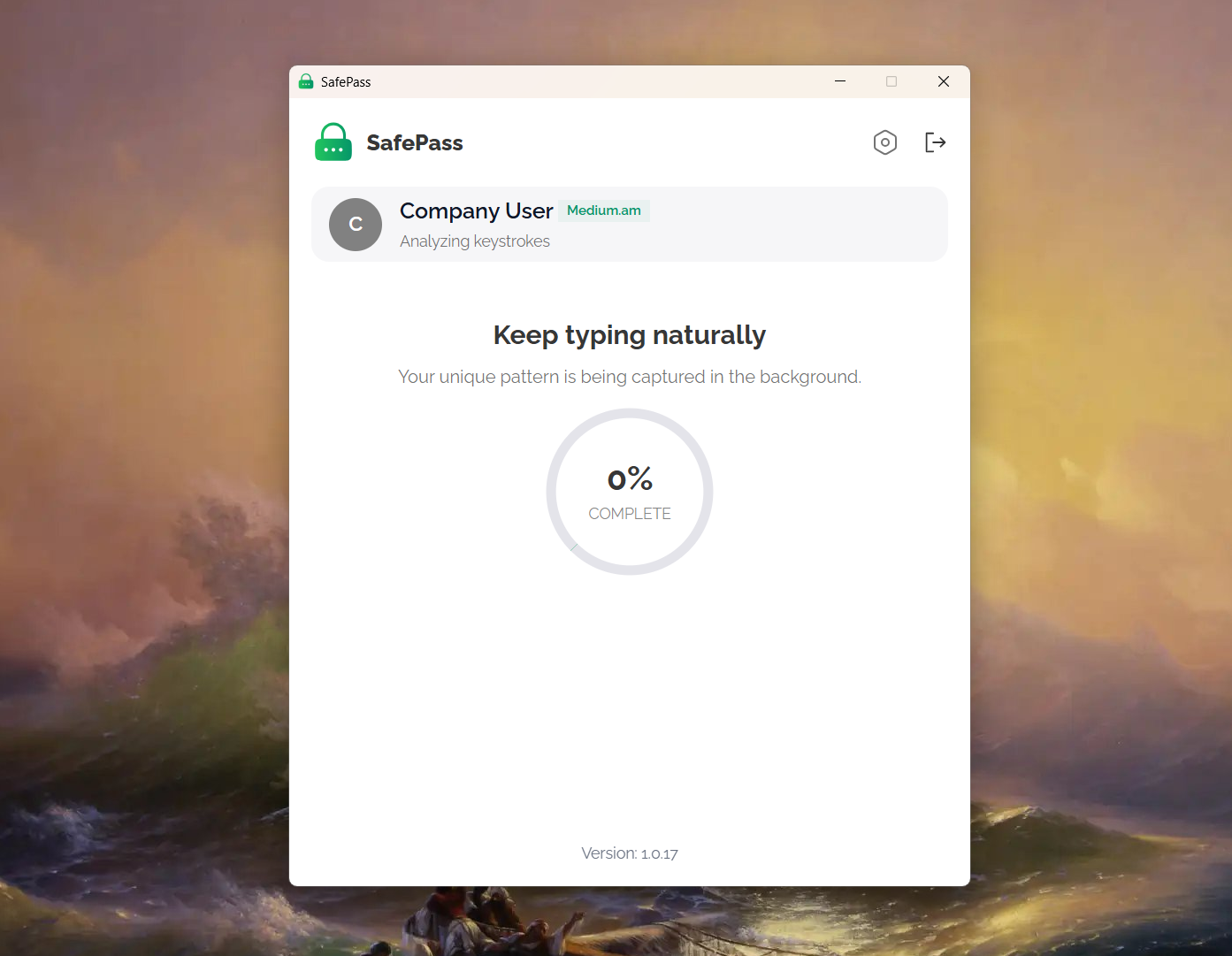
SafePass starts capturing your typing pattern and the progress begins at 0%.
Learning Progress
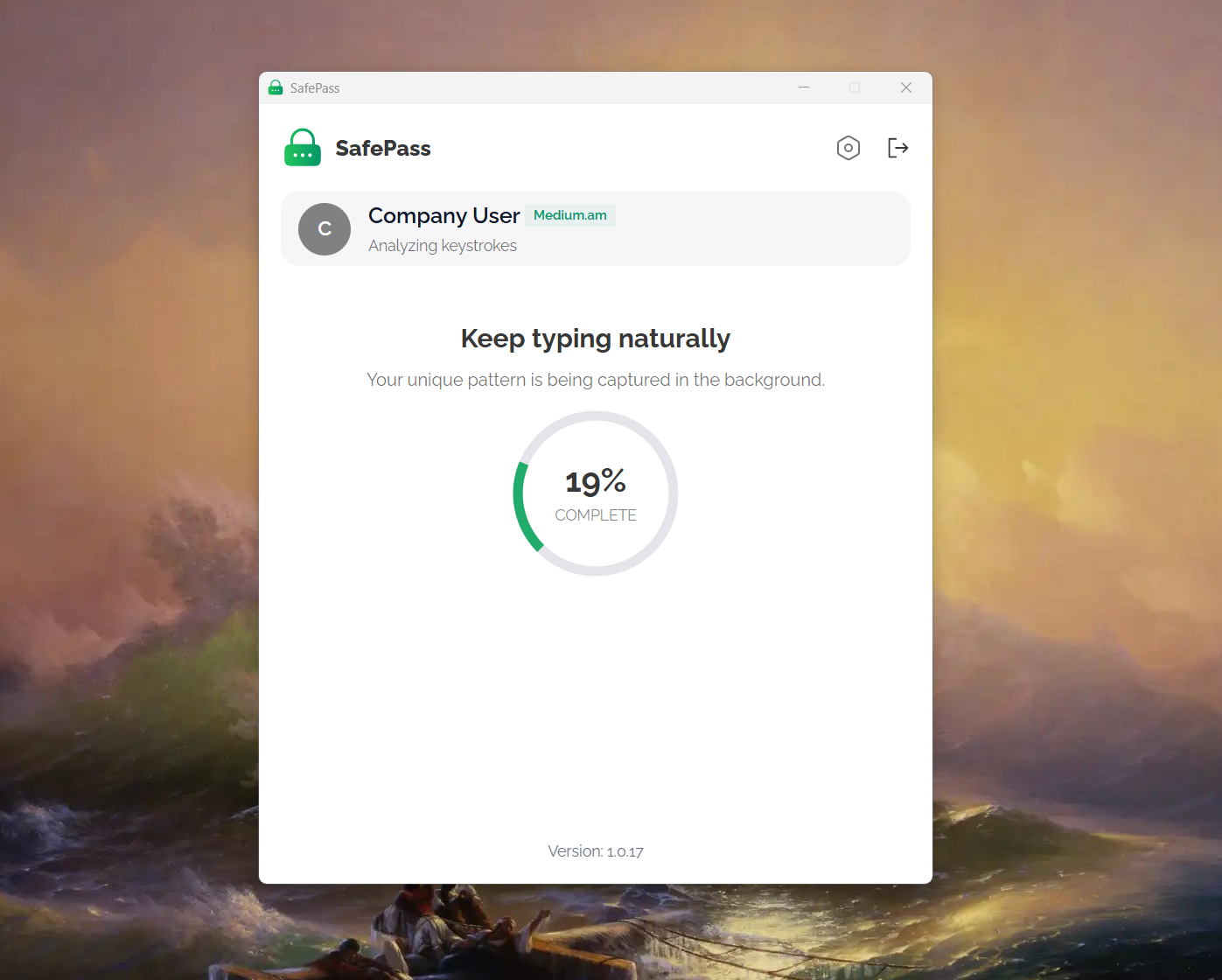
Continue using your device normally while the learning progress increases toward 100%.
You do not need to perform any special typing exercises. Continue using your device normally while SafePass learns your typing behavior. The process typically takes a few hours for regular computer users, but it may take longer depending on how frequently you type and how much typing work you do.
Important: Do not allow anyone else to use your device while the initial learning process is in progress. SafePass needs to learn your own typing behavior so that it can accurately recognize your normal activity later.
Note: You can close the SafePass learning window and continue using your device normally. The learning process continues in the background, so you do not need to keep this screen open while SafePass collects your typing behavior.
Wait for SafePass to Activate
After SafePass finishes collecting enough typing behavior, it automatically creates your personal behavioral model. During this stage, the application displays Activating... while your model is being prepared.
Activating
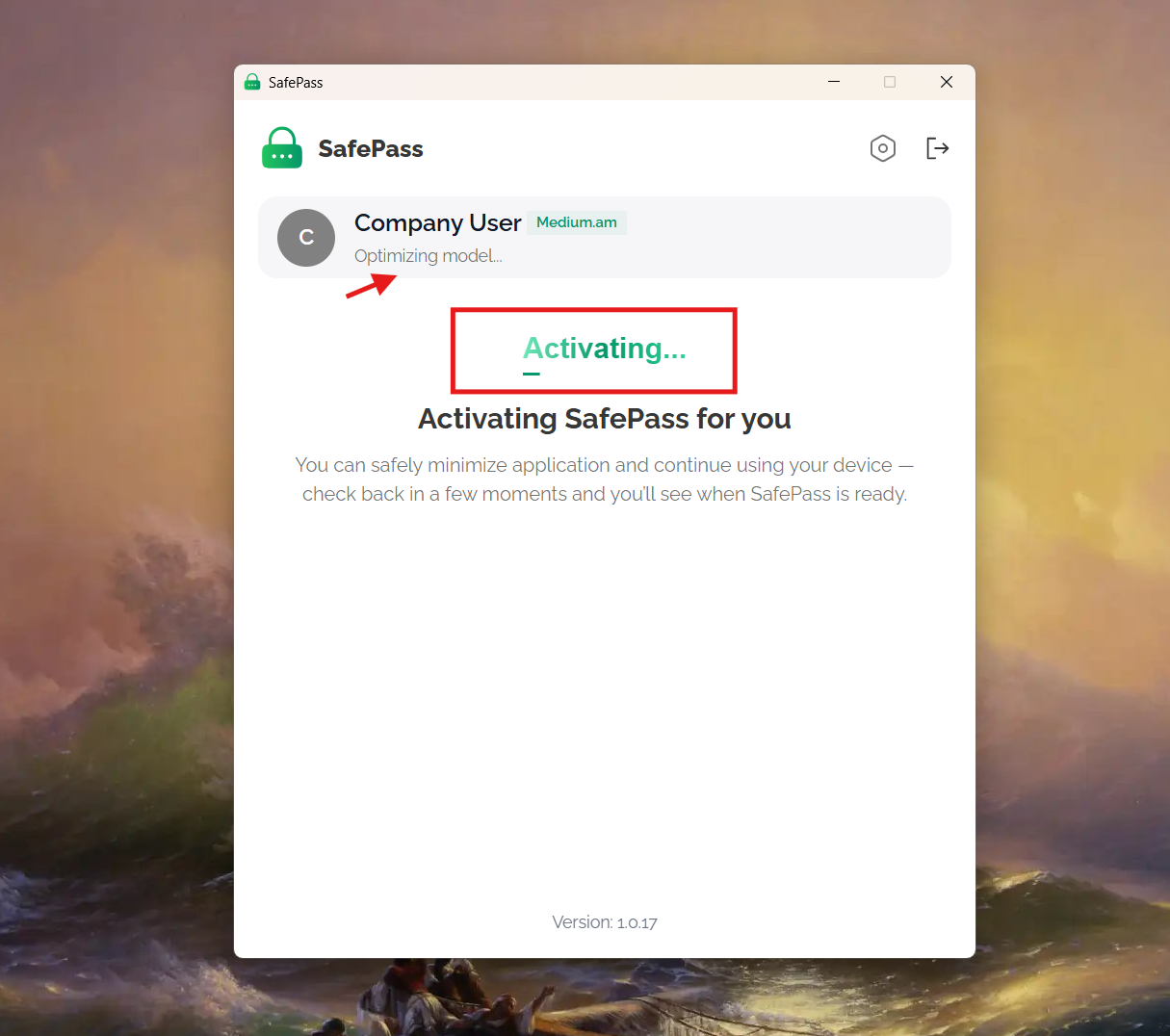
SafePass is creating your behavioral model from the typing data collected during the initial learning process.
SafePass Is Ready
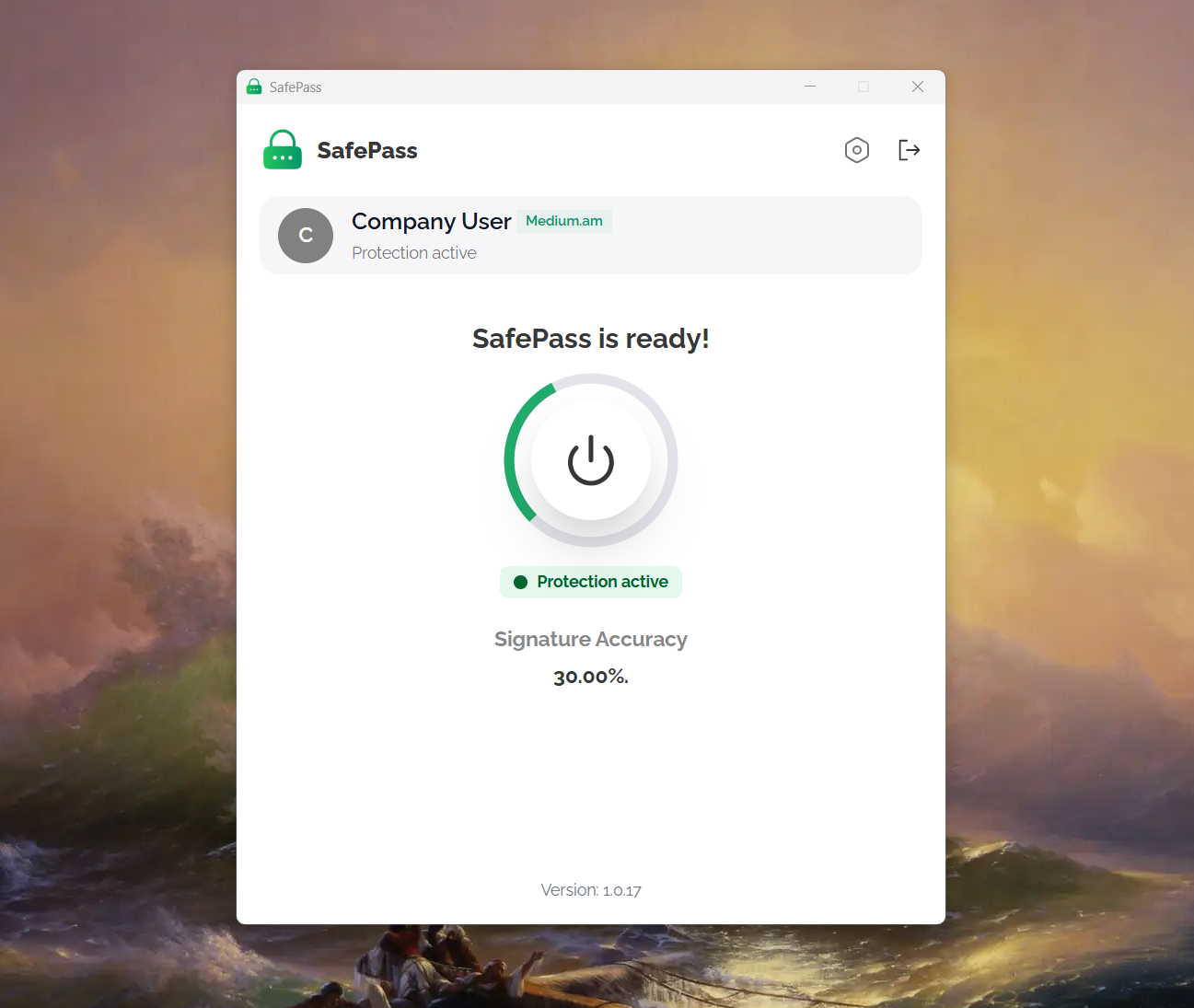
SafePass is ready and protection is active.
Activation usually takes about 1–3 minutes, although it can occasionally take up to 5 minutes. Once activation is complete, SafePass displays SafePass is ready! and Protection active.
The Signature Accuracy initially starts at around 30%. This accuracy improves automatically over time as SafePass continues learning from your normal typing behavior. You do not need to perform any additional setup or actions. Simply keep SafePass running and continue using your device normally.
Important: This information is provided to explain how SafePass works. After signing up, you do not need to wait on the activation screen or perform any additional actions. You can close the application and return to it later to check its status. SafePass is ready! is the normal operating state of the application once activation has completed.
Turn Protection On or Off
The large button in the center of the SafePass application is the protection switch. Click it to turn SafePass protection on or off.
Confirm Your Password
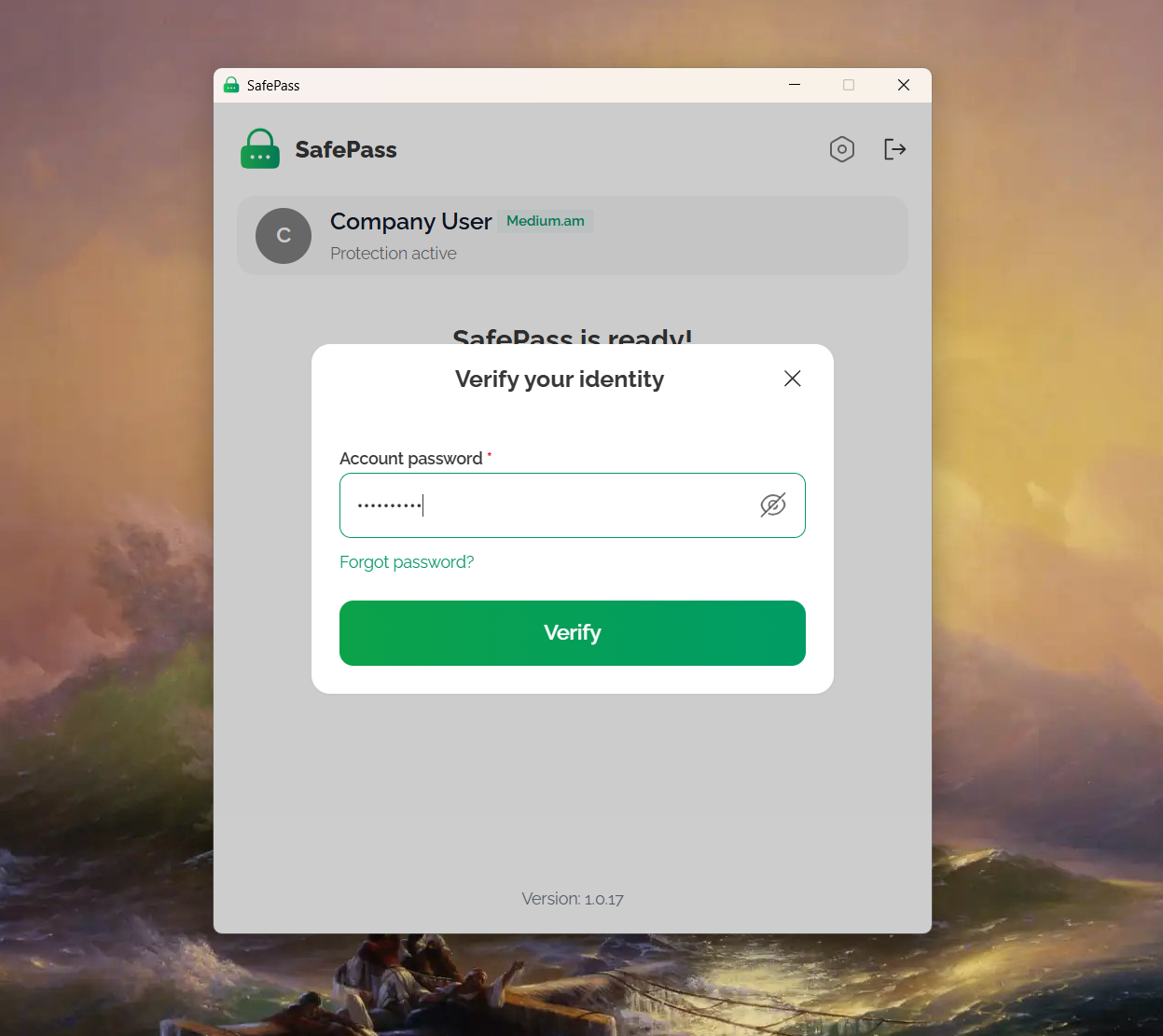
SafePass asks for your account password before allowing protection to be turned off.
Protection Off
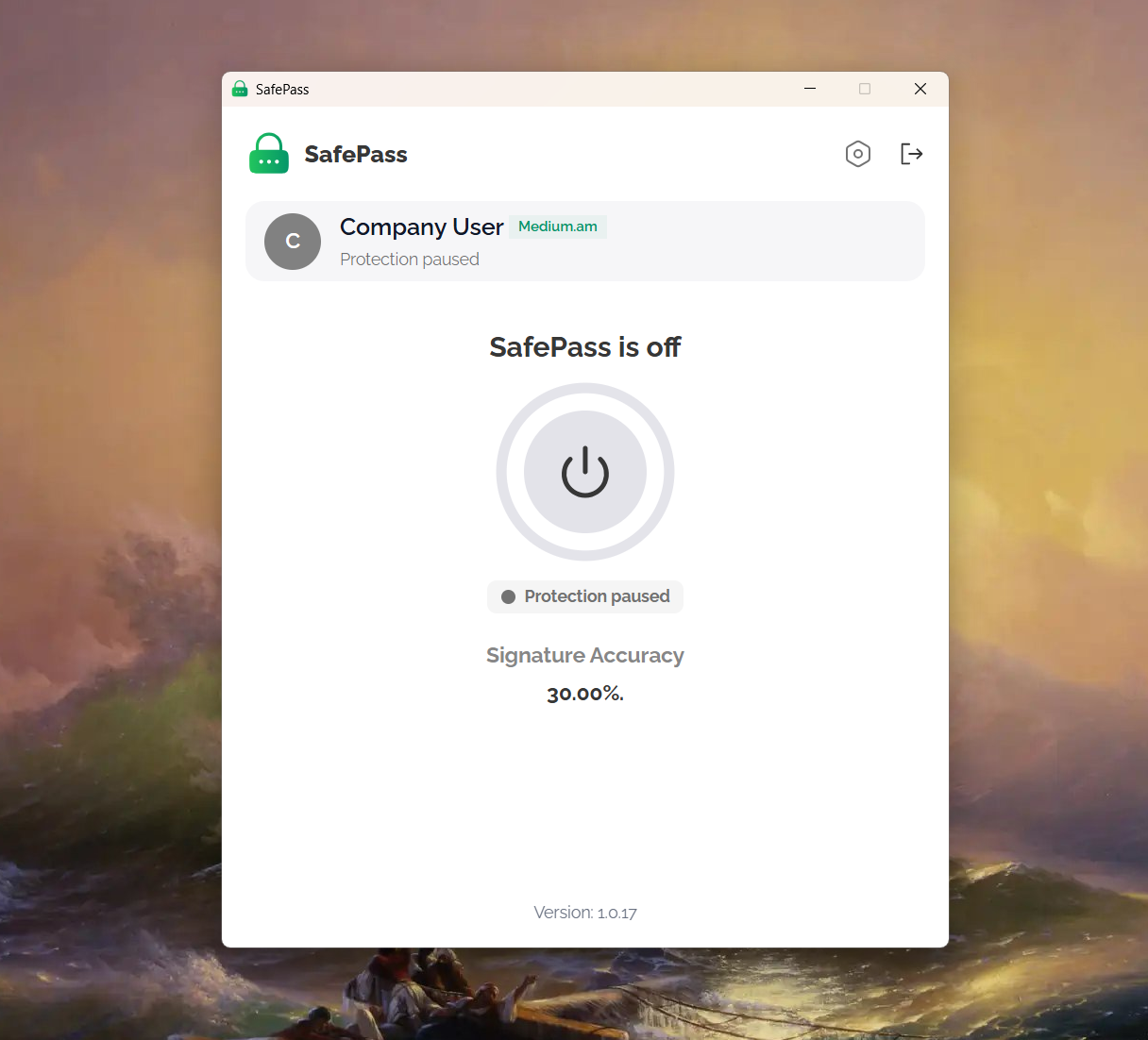
After confirming your password, SafePass displays that protection is turned off.
For security reasons, you should normally leave SafePass protection enabled and avoid turning it off. The password confirmation helps prevent another person using your device from disabling protection without your permission.
Important for Company Employees: Company owners and administrators are notified when a company member signs out of SafePass or turns protection off. Keep protection enabled to maintain your device's security and avoid unnecessary security alerts.
Configure Security Notifications
SafePass can notify you when it detects unusual activity on your device. These notification settings are available in the SafePass application and allow you to control how security alerts are delivered.
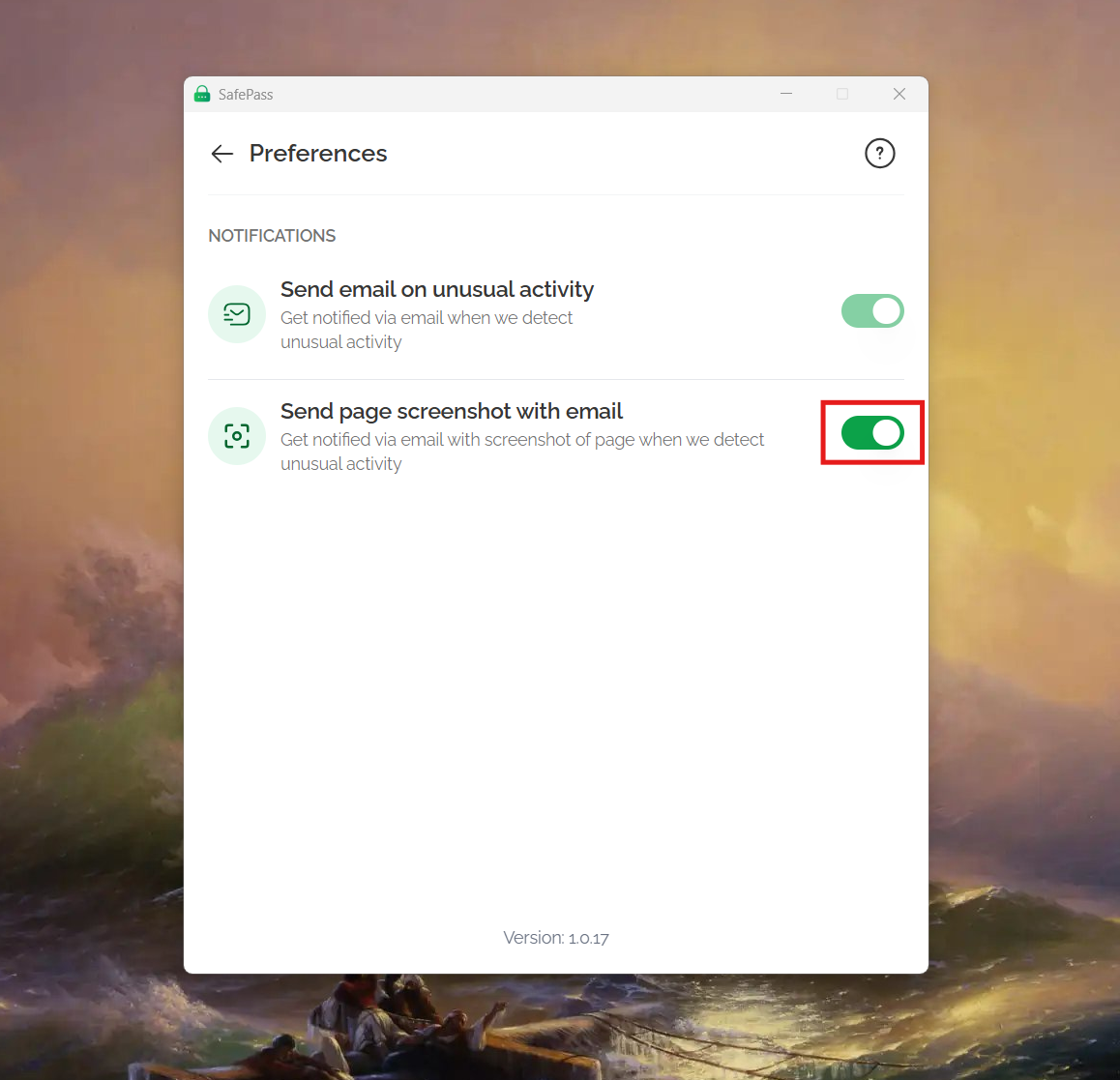
Configure email notifications and page screenshots for unusual activity alerts.
Send Email on Unusual Activity
This setting sends a security alert to your account email address when SafePass detects unusual activity. It is enabled by default and cannot be disabled while SafePass protection is turned off. If you do not want to receive these alerts, you can turn SafePass protection on instead. Keeping protection enabled is recommended for maintaining security.
Send Page Screenshot with Email
When enabled, the unusual activity email can include a screenshot of the page that was visible when the activity was detected. The screenshot can help you understand what was happening on the device at the time of the security event.
SafePass can detect unusual activity in different situations. For example, an alert may be generated when another person starts using your device or when your typing behavior becomes significantly different from the pattern SafePass has learned for you.
When an unusual activity event is detected, the account email can receive a security alert. The alert can provide information that helps you review the event and determine whether the activity was expected.
For Individual Users
Page screenshots are a premium feature. Individual users must have an active subscription, including the available 14-day free trial, to use this feature.
For Company Employees
Page screenshots are available to company employees by default. However, changing this setting affects the notifications sent to the employee. Company owners and administrators continue to receive relevant screenshots in the company dashboard regardless of the employee's screenshot email preference.
About Security Alerts: An unusual activity alert does not necessarily mean that someone else is using your device. SafePass may occasionally detect unusual typing behavior from the actual device owner. These events can be false positives, so review the available information before deciding how to respond.
Respond to a Security Alert
When SafePass detects unusual activity, it sends a security alert to the account email address when email notifications are enabled. The security message remains active for up to 10 minutes. During this time, you can review the alert and choose how to respond.
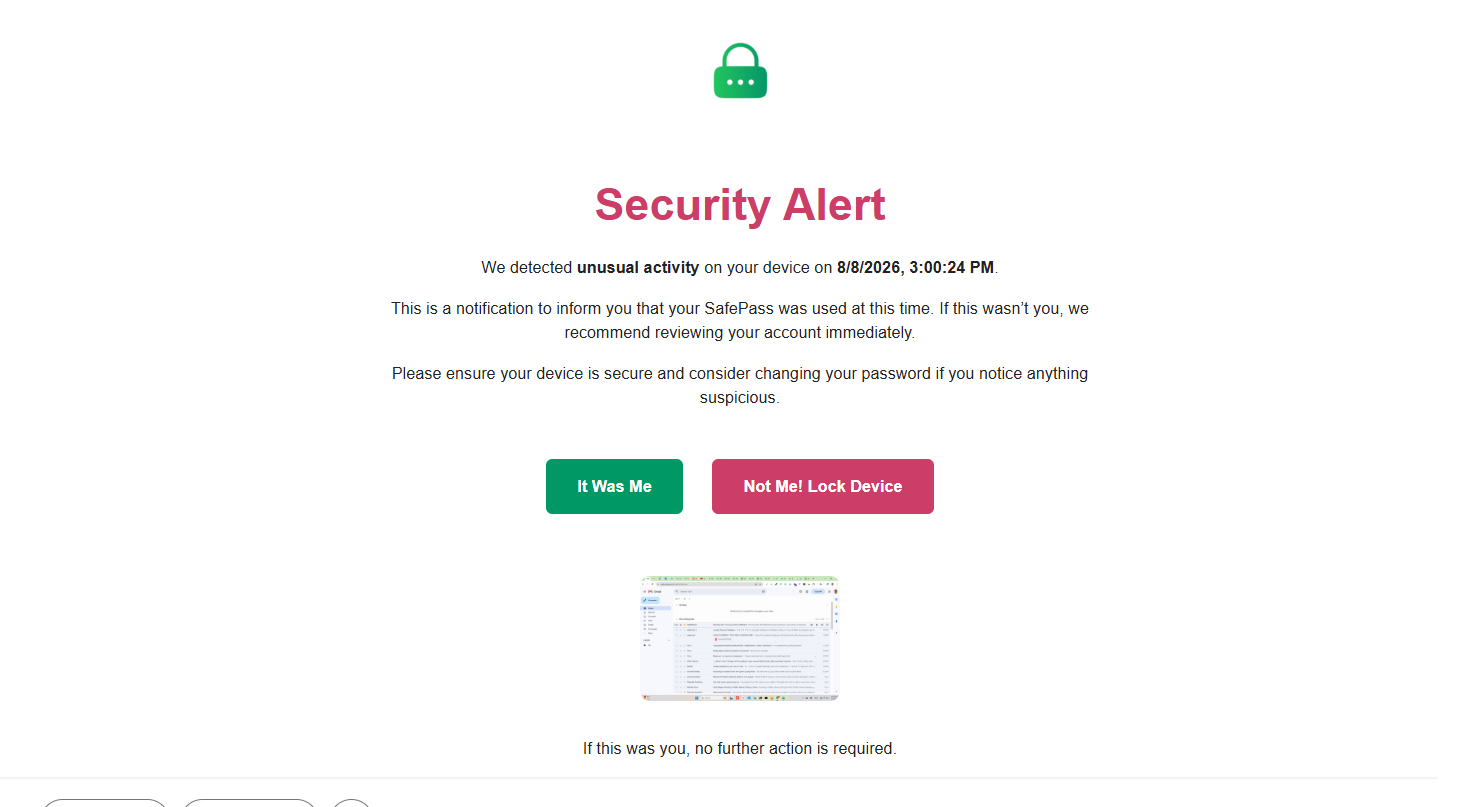
Review the security alert and choose how to respond.
Not Me! Lock Device
If you do not recognize the activity, click Not Me! Lock Device. SafePass will remotely lock the protected device to help prevent further unauthorized use.
It Was Me
If you recognize the activity and confirm that it was you, click It Was Me. You can also leave the alert unanswered if no action is required. Once the security message expires, these response options are no longer available.
Important: Protect Your Windows Account: Your Windows account should be protected with a password for the remote lock feature to provide effective protection. SafePass can still lock the computer remotely, but without a password-protected Windows account, another person may be able to access the system again after the lock.
Keep Your Account Email Secure: We strongly recommend that you do not open your SafePass account email on the same device being protected. If someone else has access to the device, they could potentially open the security email and falsely confirm that the activity was you. Using a separate trusted device to review security alerts provides an additional layer of protection.