
Installation Guide
Step-by-step instructions to install and set up SafePass on your device.
Install SafePass for Windows
SafePass is currently available for Windows operating systems. You can download SafePass from the website or by clicking the link/button below. Save the installer to your computer..
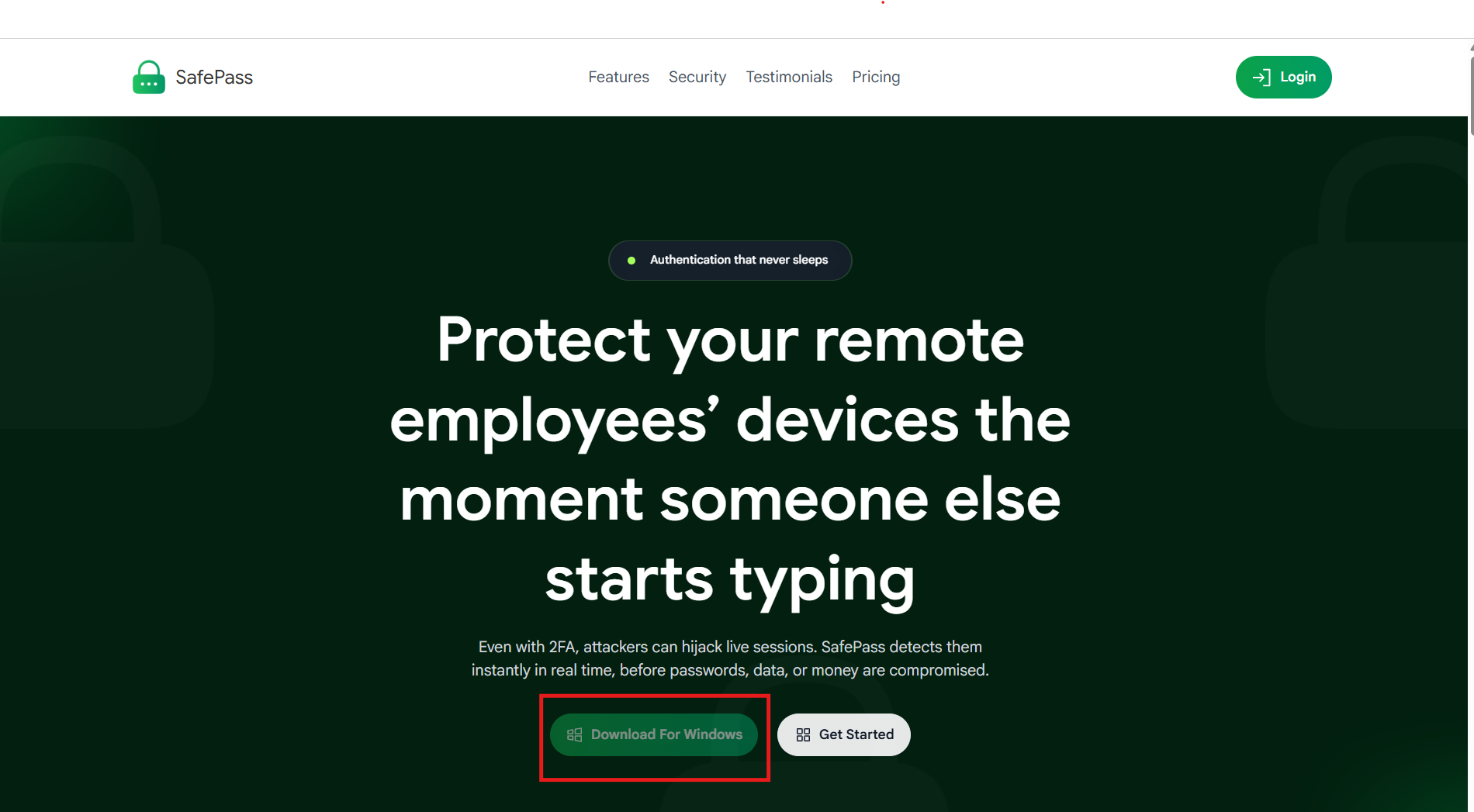
Click the download button to get the Windows installer
Note: Only Windows is supported at this time. Support for other operating systems will be added in future updates.
Run the Installer
Find the Windows installer in your downloads folder and double-click it to start the installation.
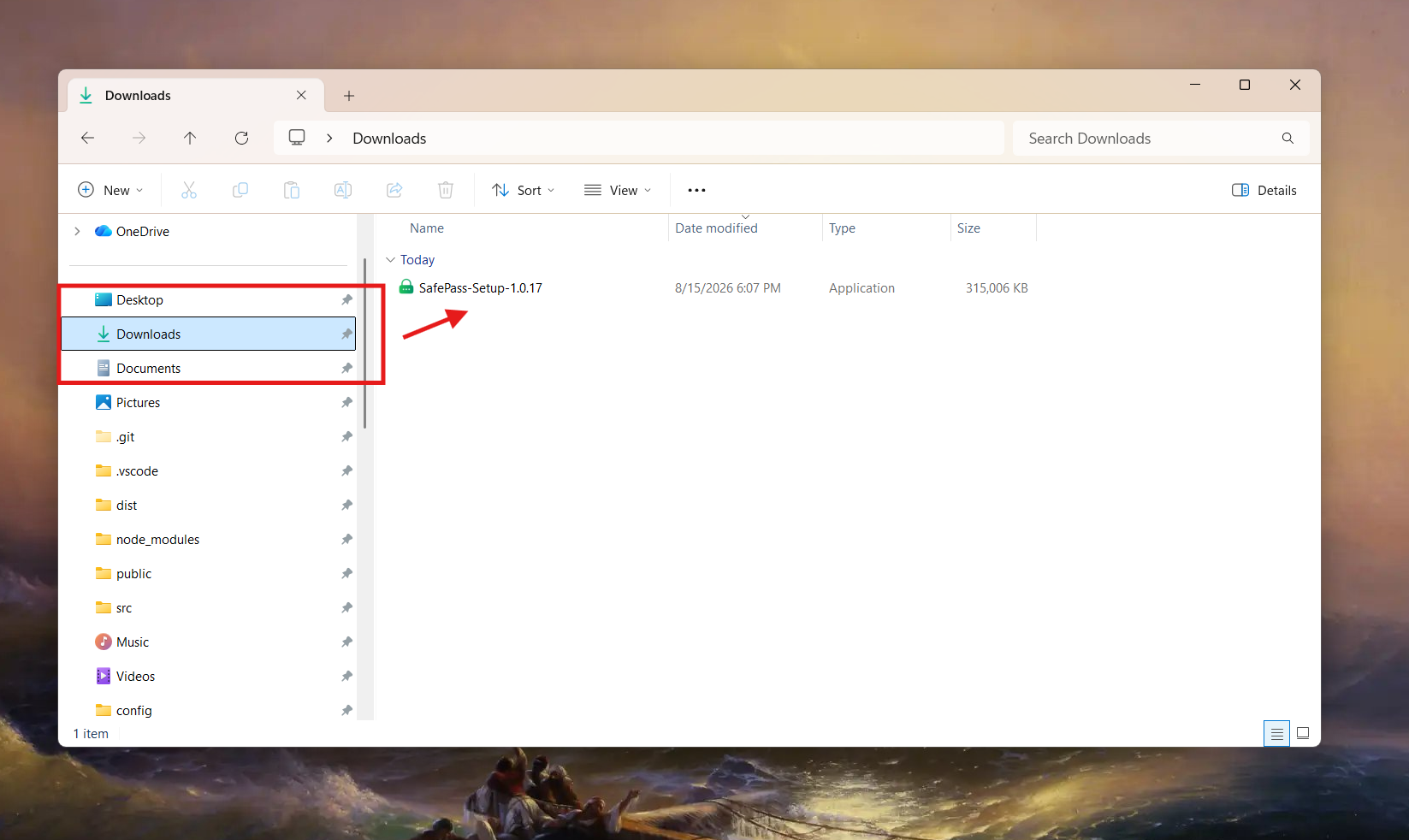
Double-click the installer file to begin installation
Bypass Windows Protection Screen
Since SafePass is a new application, Windows may show a blue protection screen.
Step 3.1: Click "More Info"
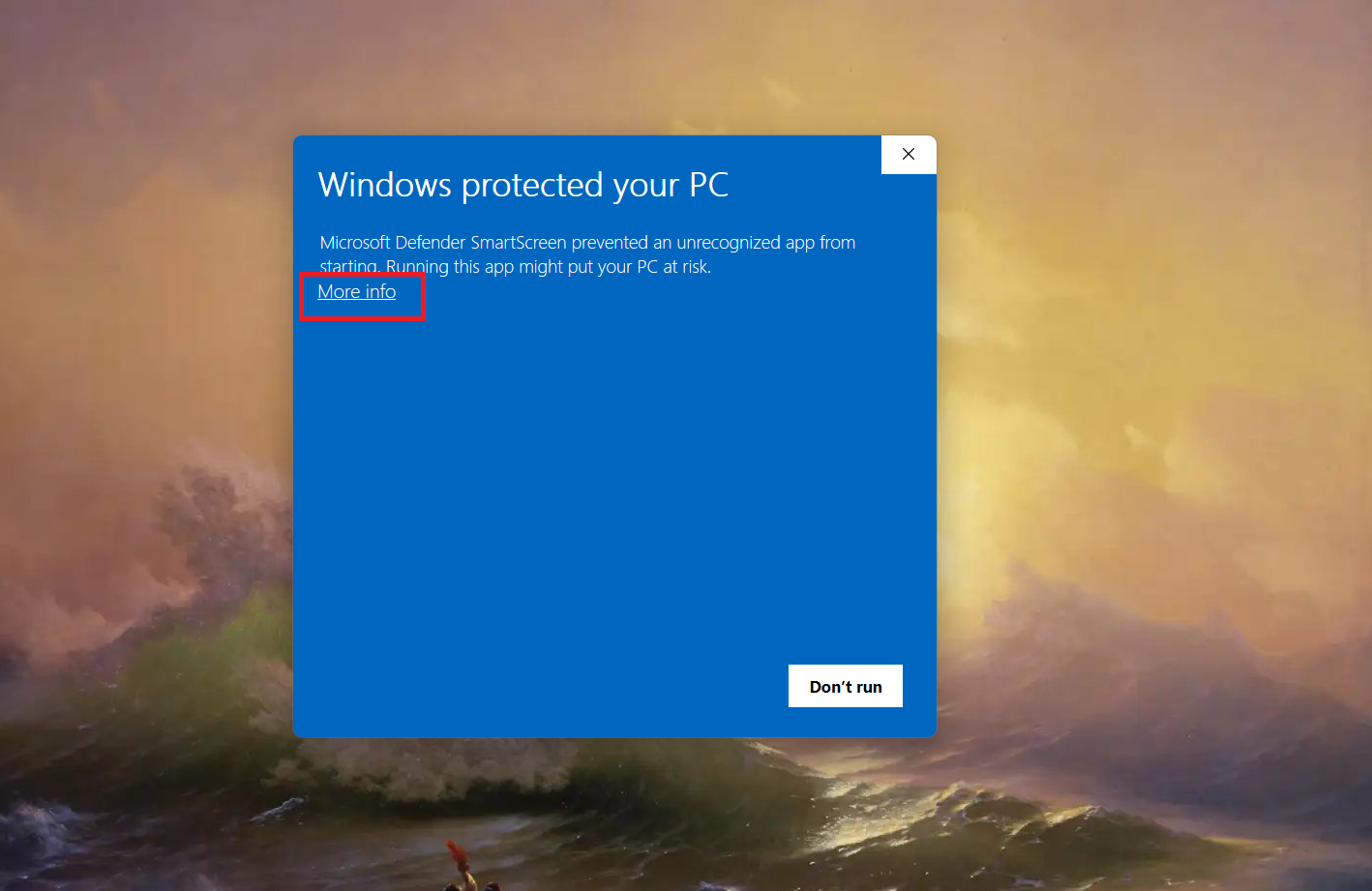
Click "More info" to reveal additional options
Step 3.2: Click "Run Anyway"
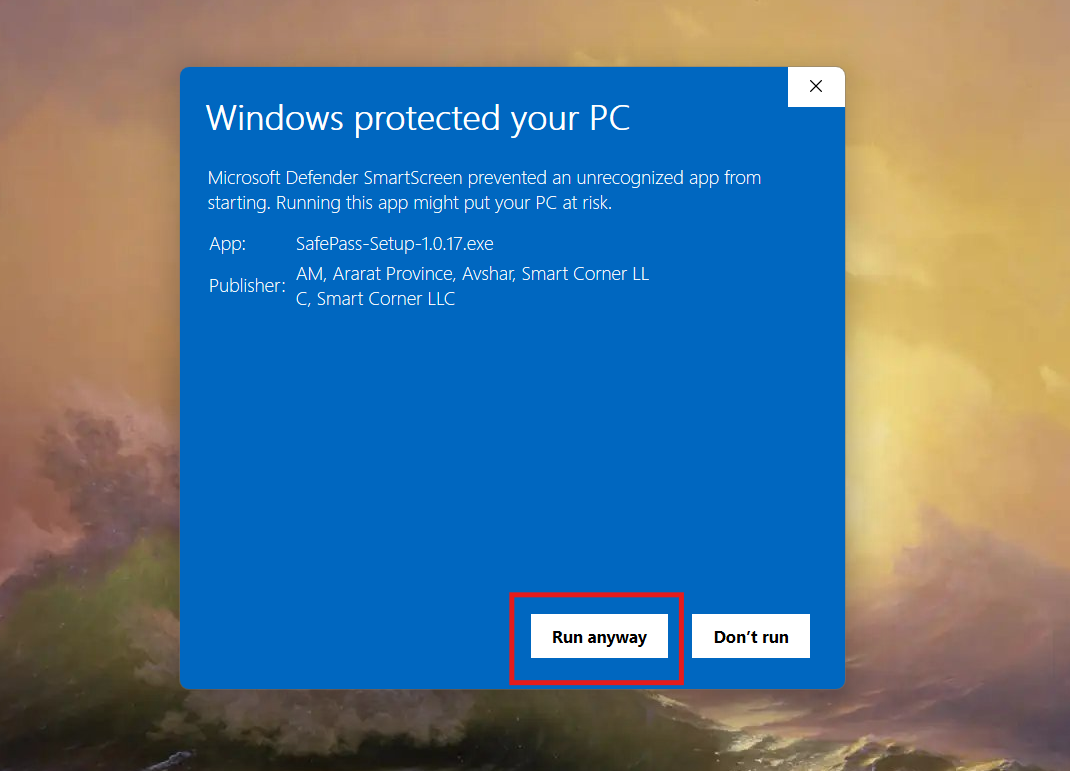
Click "Run anyway" to start the installation
Important: SafePass is a legitimate application with official company registration and SSL certificate. This Windows warning appears because the app is new and doesn't yet have enough reputation with Microsoft.
Complete the Installation
Continue with the normal installation by following the setup wizard instructions. When the installation is complete, click "Finish" to open the SafePass application.
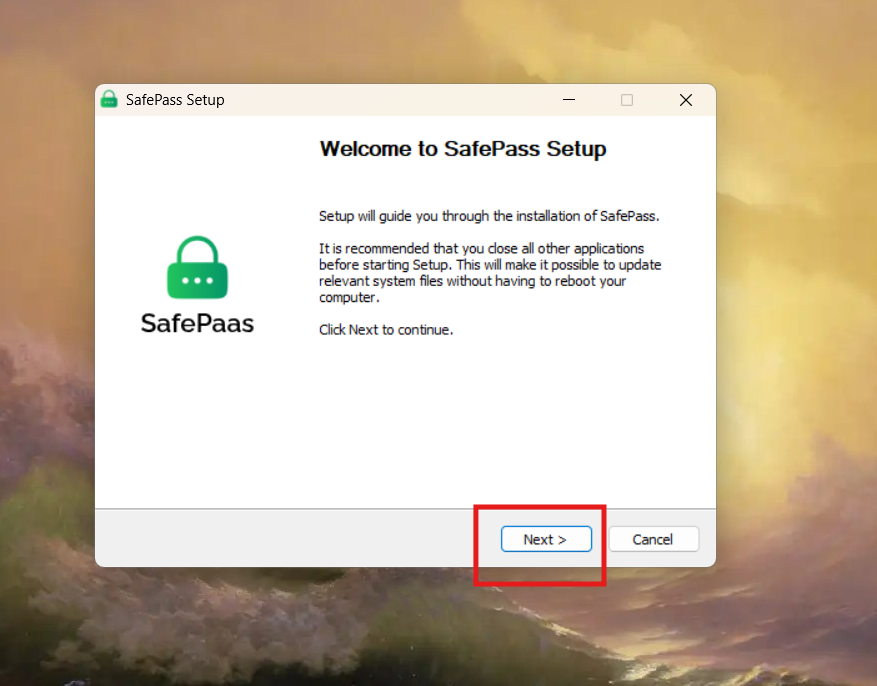
Step 1: Welcome screen
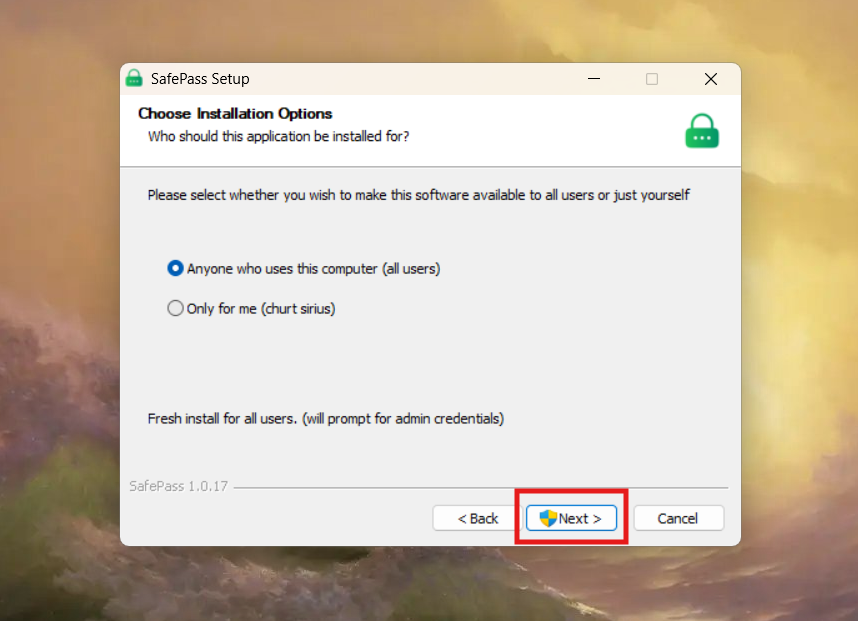
Step 2: Accept license agreement
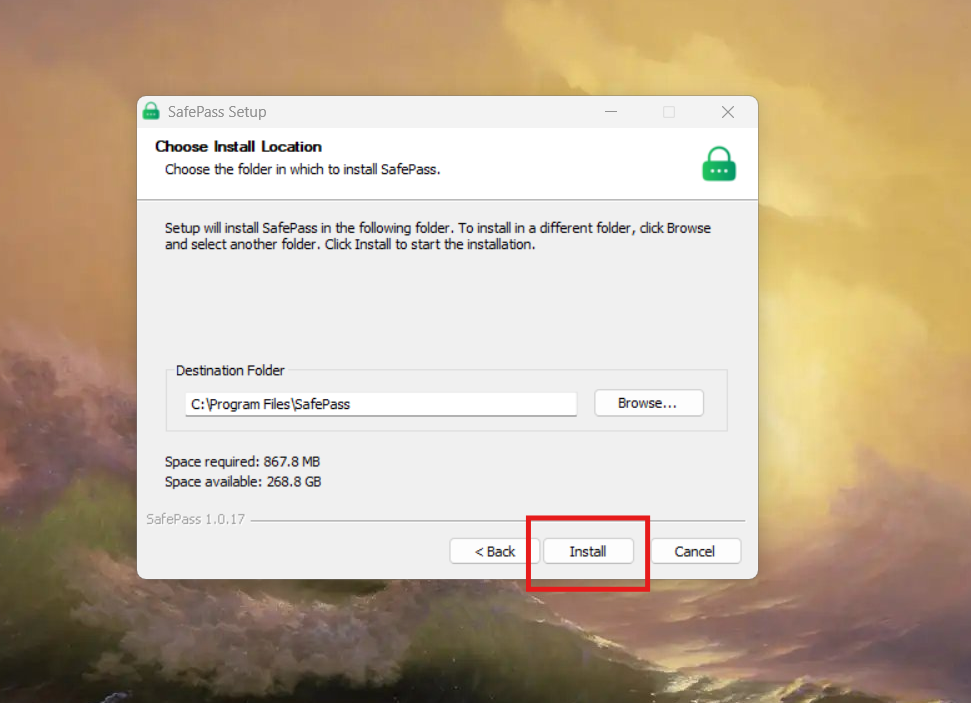
Step 3: Choose installation folder
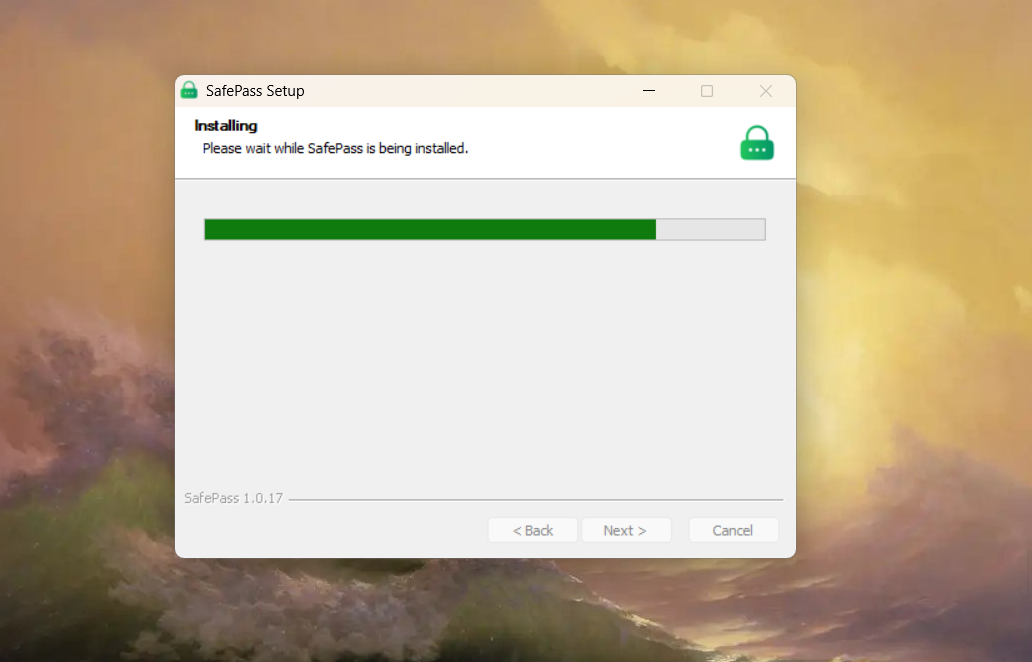
Step 4: Installation progress
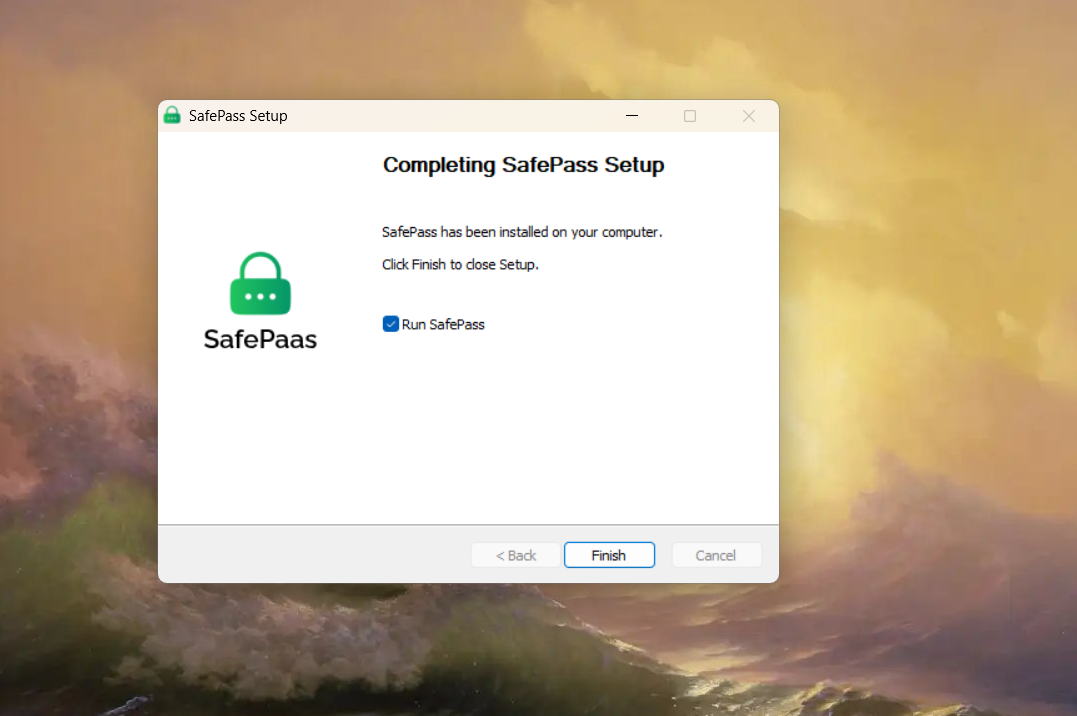
Step 5: Click "Finish" to open SafePass
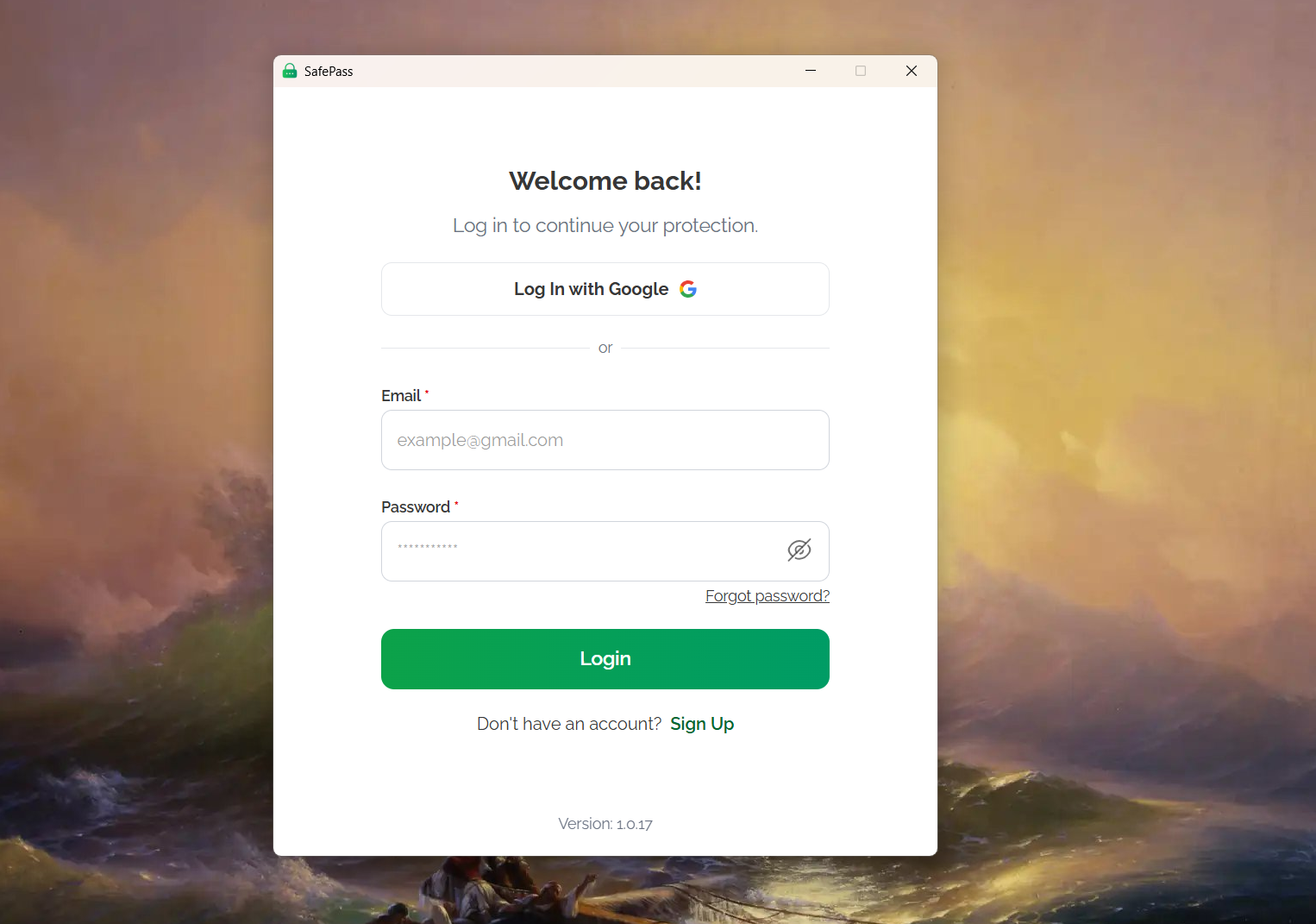
Step 5: SafePass installed